
Save 15%Scripts & Systems

FiveM CarPlay Script: Synced YouTube Car Radio

5.0(1 review)5+ soldSKU FS-100

In-car music for FiveM: play YouTube links with 3D synced sound, a song queue and volume control.

EUR 8.50EUR 10.00You save EUR 1.50

One-time payment · tax included · instant download

  • Instant downloadFiles unlock the moment payment confirms.
  • No license key neededPlug & play with no IP lock or encryption — fully editable.
Open Source
Yes
Framework
Standalone
Framework
QBCore
Framework
ESX
  • Instant digital delivery
  • 256-bit SSL checkout
  • Lifetime file updates
  • Discord tech support
Overview

What you get

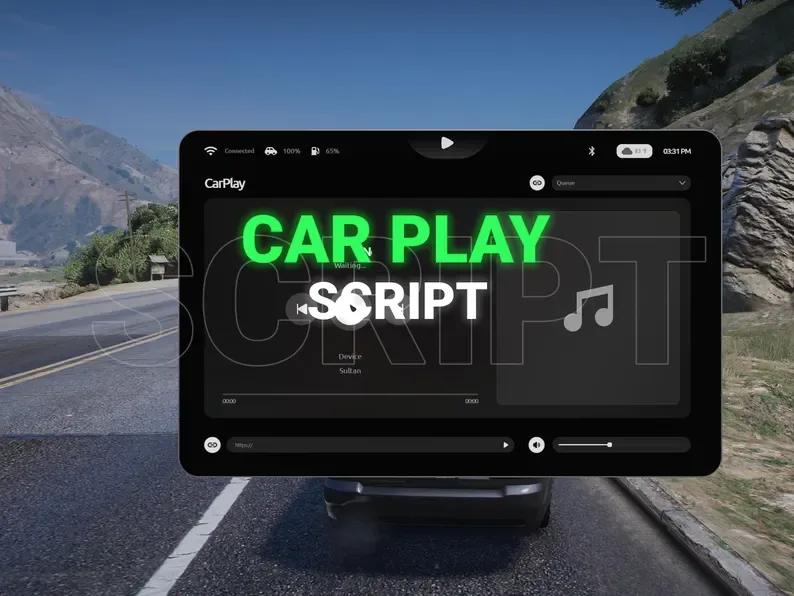
Give every car on your server a working CarPlay screen. Players paste a YouTube link, and the music plays from the car itself: everyone nearby hears the same song, in sync, getting louder as they get closer.

Features

  • Synced 3D car audio: the song plays from the vehicle's position, and every nearby player hears it at the same moment. Play, pause and volume changes sync for everyone.
  • Hearing range grows with speed: about 10 metres when parked, further when driving fast, so passing cars sound realistic.
  • YouTube and direct links: paste a YouTube link or a direct audio URL (for example an MP3).
  • Song queue: line up songs, play the next one, or remove songs from the queue.
  • Music stays with the car: the song, queue and progress belong to the vehicle. Open CarPlay again in the same car and you see what's playing.
  • Vehicle info on screen: car name, engine health and fuel level, next to a progress bar with the song time and a volume slider.
  • Clean up automatically: music stops when the car is deleted, and resets when the resource restarts.
  • Open with a command or a key: /carplay by default, plus a keybind players can change in their FiveM key settings.

Requirements

  • xSound (free), the sound library that plays the audio.
  • No framework needed: works on ESX, QBCore, Qbox or any other server.
  • No database.

Configuration

shared/config.lua lets you change:

  • the command name (default carplay)
  • the keybind (or turn it off)
  • the notification function, so messages use your server's own notify system
  • debug mode

Open source

All Lua code is included and editable, so you can change how it works or connect it to your framework.

Installation

Up and running in minutes

server.cfg
ensure xsound
ensure lm_carplay
  1. 1Download CarPlay from Downloads in your account and extract the ZIP.
  2. 2Install xSound if your server doesn't have it yet (free: github.com/Xogy/xsound) and put it in your resources folder.
  3. 3Copy the lm_carplay folder into your resources folder. Don't rename it.
  4. 4Add both ensure lines above to server.cfg, with xsound before lm_carplay so the sound system starts first.
  5. 5Optional: open config.lua in lm_carplay to change the key, volume or other settings.
  6. 6Restart your server, get in a vehicle and open CarPlay to play a YouTube song.

Framework compatibility

  • ESX Legacy
  • QBCore
  • Standalone FiveM
  • Qbox
Reviews

Customer reviews

5.0
1 review
  • 5 star1
  • 4 star0
  • 3 star0
  • 2 star0
  • 1 star0

Every customer who reviews a product they own gets a 20% discount code as a thank-you, whatever rating they give.

thexyzz.Verified purchase

AMAZING

LOVE IT, ALL SYNCED BETWEEN PLAYERS WOW

Good to know

Frequently asked questions

When will I get my order?

Instantly. As soon as your payment is confirmed, the files appear in your Downloads, together with every future update.

Which frameworks does it support?

Each script lists its frameworks on the product page (ESX, QBCore, Qbox or standalone).

Do I need a license key?

Scripts marked “License key included” are tied to your server’s IP. You can change the IP yourself any time on your License keys page.

Are updates included?

Yes. Every purchase includes all future updates, downloadable from your account.

What if it doesn’t work?

Ask us on Discord and we’ll help you fix it. If a resource doesn’t work as described and we can’t fix it, you get a refund, as set out in our refund policy.

What if I need help?

Open a ticket in our Discord and the team will help you get it running.

Related assets
More Scripts & Systems